 TallyKnot
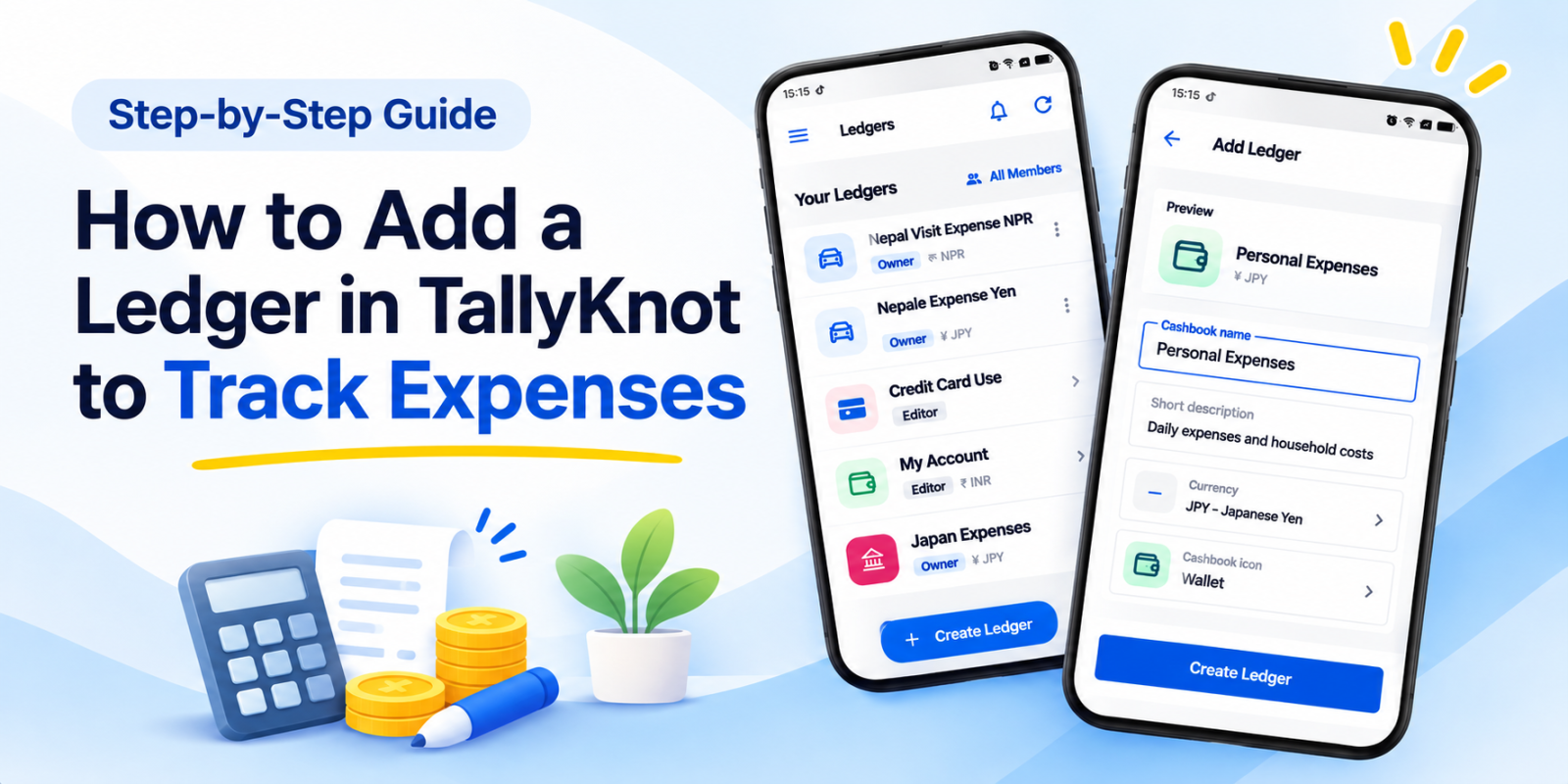
Most of us have looked at our balance at the end of the month and wondered where it all went. Writing down what you spend is the simplest way to find out, and in TallyKnot, that starts with a ledger.
Setting one up takes about a minute, and only one field is required. We'll go through it together in the Android app, and along the way we'll share a few tips so your ledger still makes sense months from now.
What is a ledger in TallyKnot?
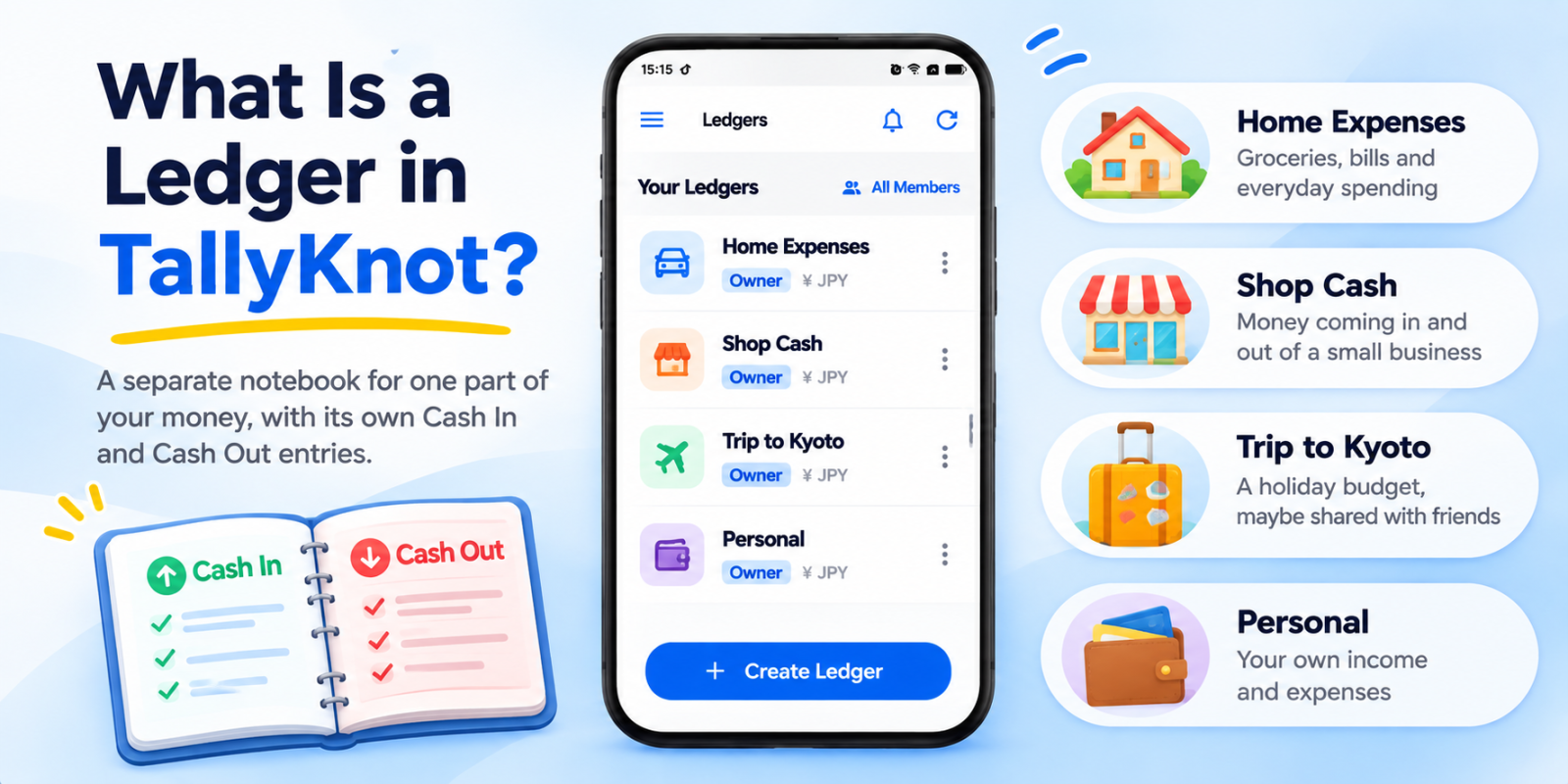
Think of a ledger as a separate notebook for one part of your money. Each one has its own Cash In and Cash Out entries, so your household expenses won't get mixed up with your shop's sales or your holiday budget.
It helps to see a few examples. Say you run a small shop and also want to keep an eye on your household spending. You'd probably want separate ledgers, something like these:
- Home Expenses for groceries, bills and everyday spending.
- Shop Cash for money coming in and going out of a small business.
- Trip to Kyoto for a holiday budget, maybe shared with friends.
- Personal for your own income and expenses.
Before you start
You need the TallyKnot app from Google Play on your Android phone and a TallyKnot account that you have signed in to.
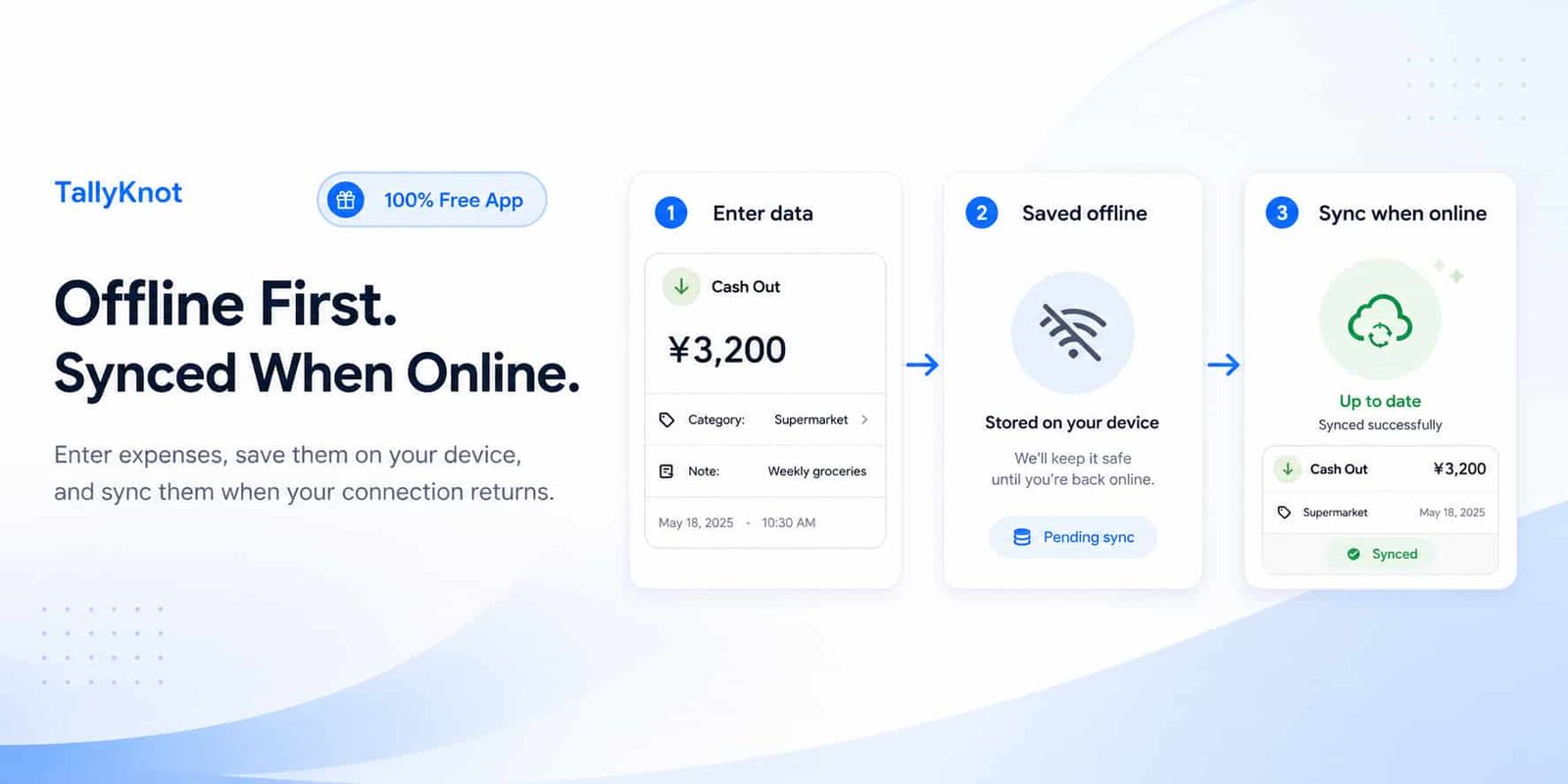
No internet right now? That's okay. TallyKnot saves the new ledger on your phone and syncs it once you're back online.
How to add a ledger, step by step
It looks like a lot written out as six steps, but it goes quickly. In a hurry? Type a name, tap the button and sort out the rest later.
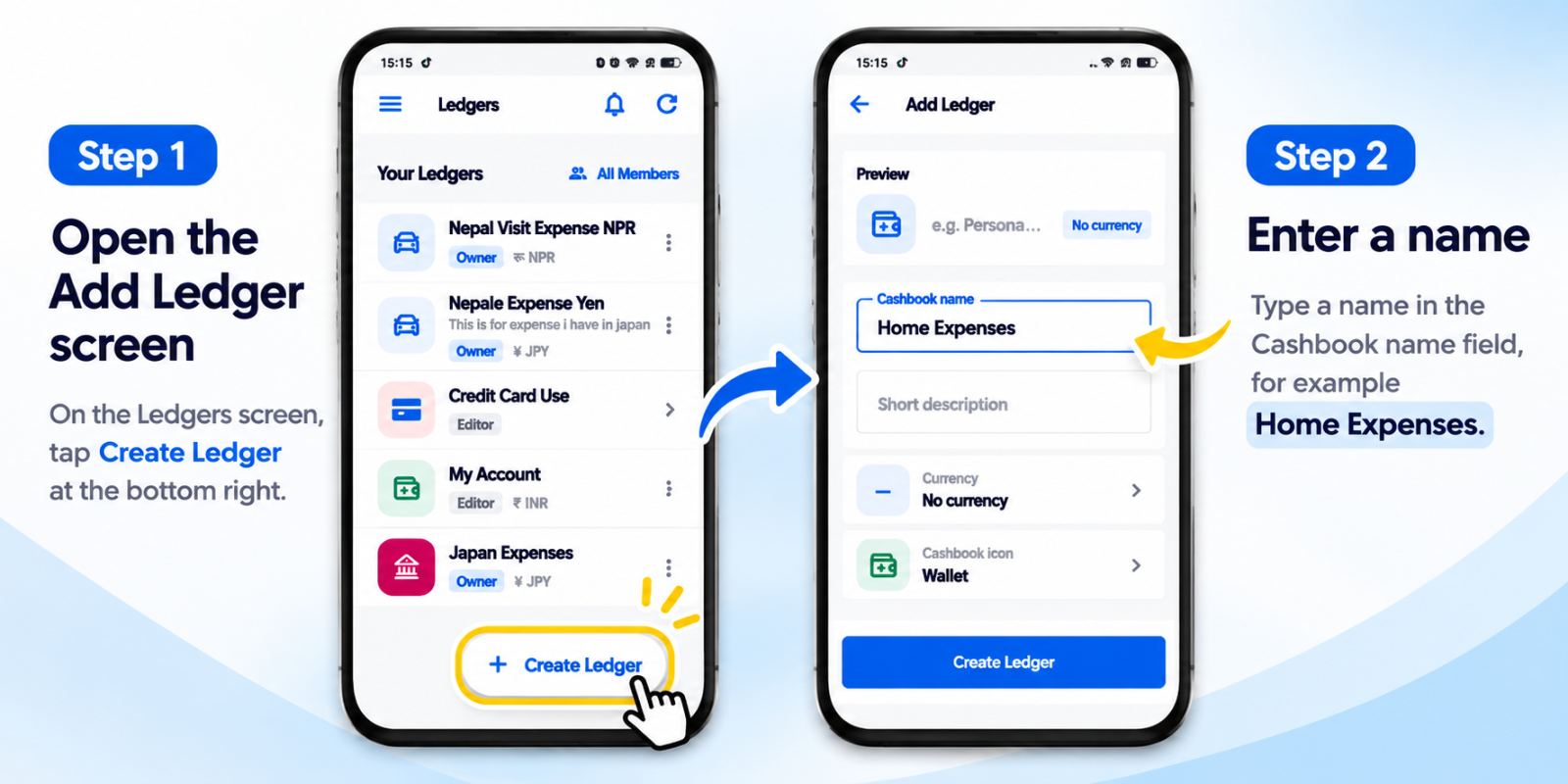
Step 1: Open the Add Ledger screen
Open the TallyKnot app. You'll land on the home screen, called Ledgers, which lists all your ledgers.
Now tap the Create Ledger button at the bottom right. This opens a new screen called Add Ledger.
Just installed the app? You'll also see a message saying No ledgers yet. Nothing's wrong. It goes away once you've created your first one.
Step 2: Enter a name
Type a name into the Cashbook name field. This is the only field you have to fill in, and you've got up to 60 characters.
It's worth spending a few seconds on this. Six months from now, Shop Cash 2026 will mean a lot more to you than Ledger 1.
Step 3: Add a short description (optional)
Use the Short description field to jot down what this ledger is for, in up to 120 characters. For example: Daily cash sales and small shop expenses.
It's fine to leave this empty. Still, the description shows on the ledger's card on the home screen, so a few words can help when you have several ledgers or share one with others.
Step 4: Choose a currency
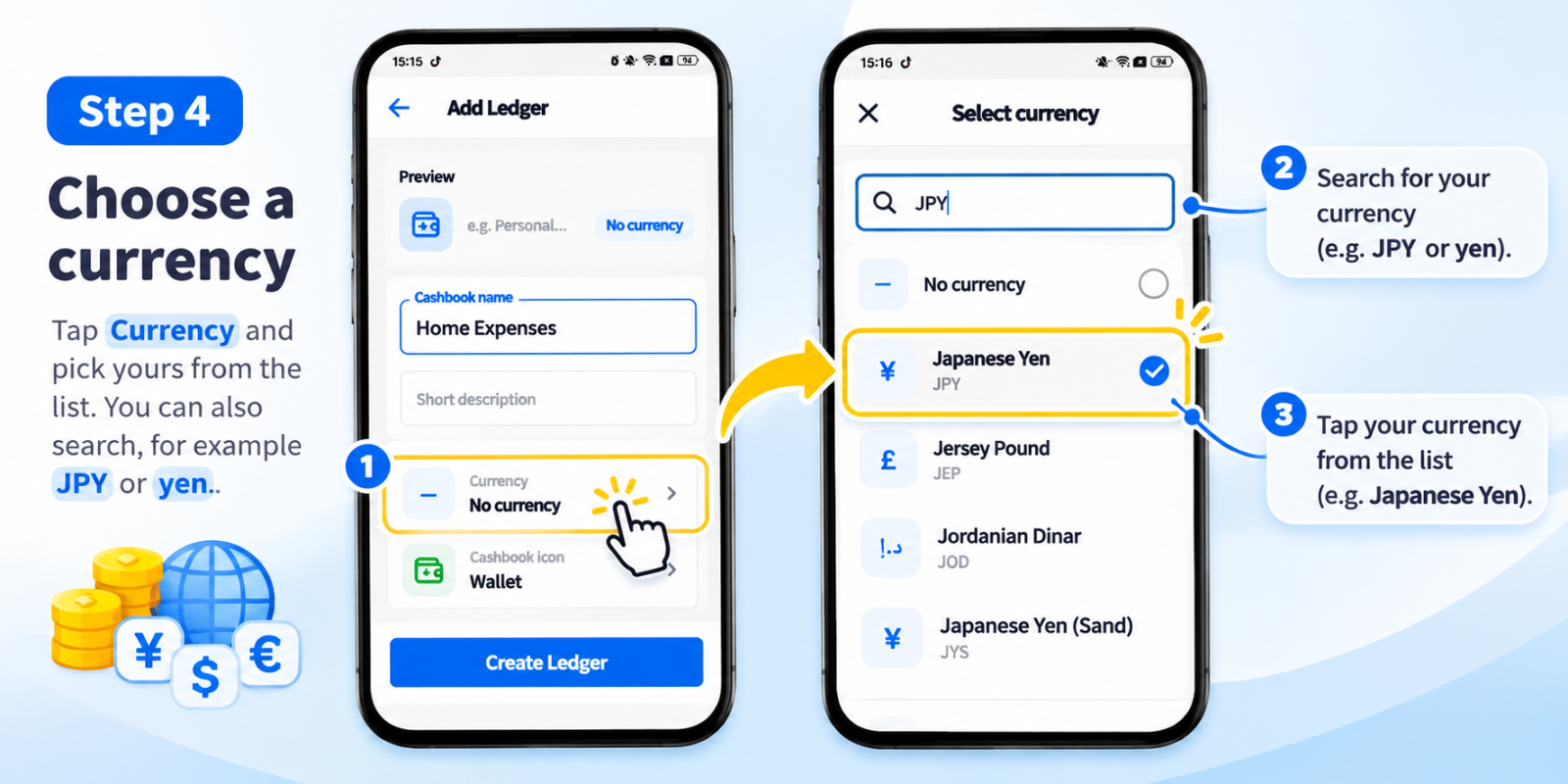
Tap Currency and pick yours from the list. There's a search box too, so typing JPY or yen is much quicker than scrolling.
A new ledger starts with No Currency selected. That's fine if you just want plain numbers, but choosing one makes your amounts clearer, especially if other people will be using the ledger too.
Step 5: Pick an icon and colors
Now for the fun part. Tap Cashbook icon to choose an icon, then pick an Icon color and an Icon background color.
You can skip this, though it's more useful than it looks. Give your shop ledger one color and your home ledger another, and you'll find the right one without reading the names.
Keep an eye on the Preview card at the top of the screen. It changes as you go, so you can see how your ledger will look before you create it.
Step 6: Tap Create Ledger
Happy with how it looks? Tap Create Ledger at the bottom of the screen. You'll go back to the Ledgers screen and see one of these two messages:
- Cashbook created successfully. All done. Your ledger is created and synced.
- Cashbook saved on this device. It will sync when you're online. You're offline, but nothing's wrong. Your ledger is saved on your phone, and you can keep using it.
Your new ledger is now on the list, ready for its first entry.
What each field does
| Field | Required? | What it is for |
|---|---|---|
| Cashbook name | Yes | The ledger's name, up to 60 characters. |
| Short description | No | A note about what you will track, up to 120 characters. |
| Currency | No | The currency for this ledger. It starts as No Currency. |
| Cashbook icon | No | A small picture that helps you recognize the ledger. |
| Icon color and background | No | Colors that make the ledger stand out in your list. |
Tips for setting up a ledger to track expenses
- Create one ledger for each purpose. If home and business money share a ledger, the totals won't tell you much about either one.
- Don't create too many. If you'd always look at two ledgers together, you may be better off with one ledger and a few categories.
- Choose the currency at the start. That way, your amounts are clear from the very first entry.
- Include a year or place when it helps. Names like Rent 2026 or Trip to Kyoto will still make sense later on.
What to do after creating your ledger
Tap your new ledger to open it. The best way to build the habit is to add something right away, even if it's just today's coffee.
- Add your first entry. Use Cash In when money comes in and Cash Out when you spend it.
- Invite other people. Want to share the ledger? Open its members page and add someone by email.
Since you created the ledger, you're its owner. That means you're the one who can invite members and edit its details, so you can come back and change the name, description, currency or icon whenever you like.
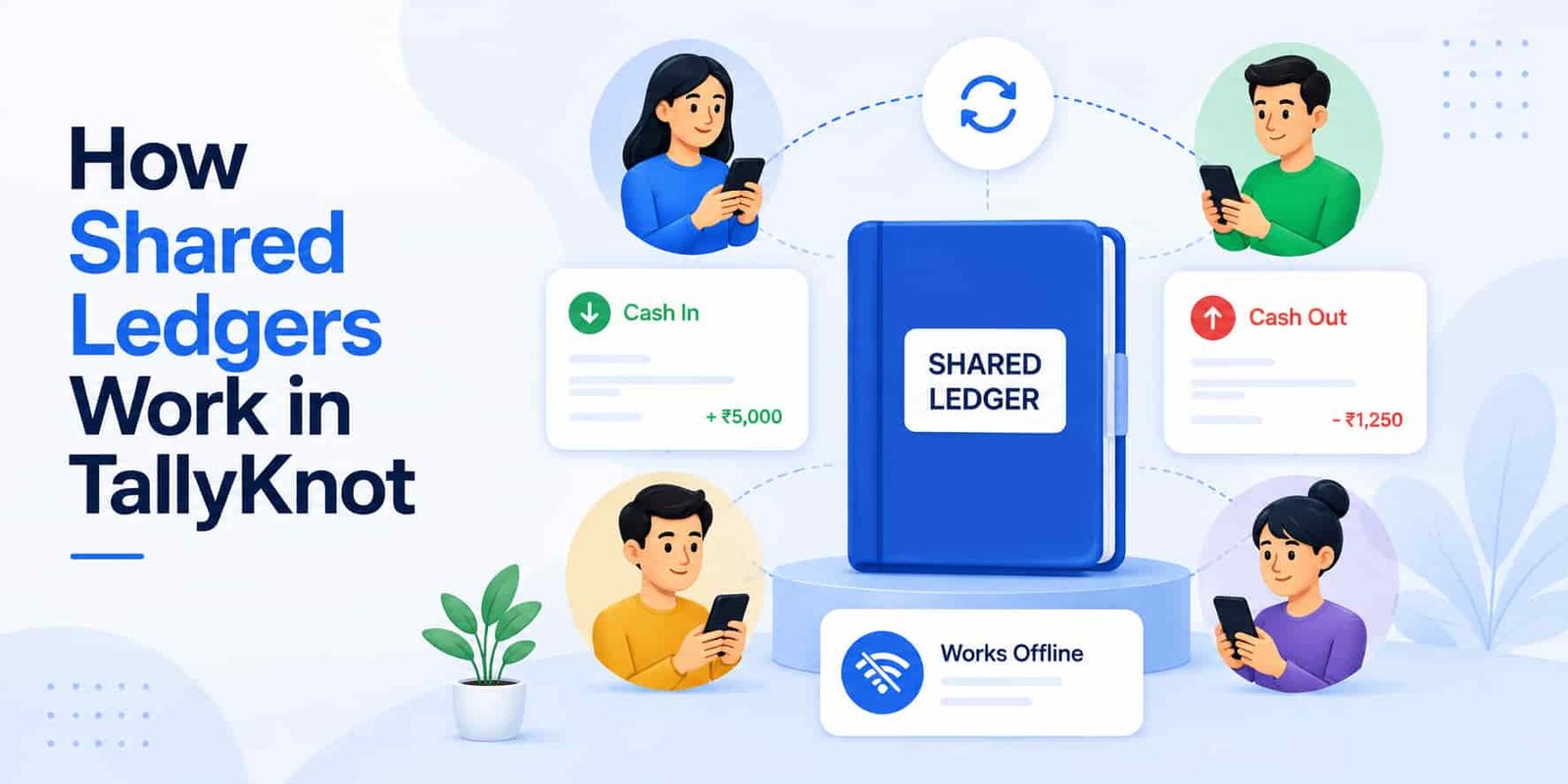
Planning to track money with other people? Read how shared ledgers work in TallyKnot.
Can you add a ledger on the website too?
Yes. If you'd rather use a computer, log in to your TallyKnot dashboard in a web browser and create a ledger there with the same details: name, description, currency, icon and colors. Your ledgers are tied to your account, so one you create on the website can show up in the app once it has synced.
Frequently asked questions
Still have a question? Here are a few quick answers.
Are a ledger and a cashbook the same thing?
Yes, in TallyKnot they mean the same thing. You'll see both words in the app: the screen is called Add Ledger, but its first field says Cashbook name.
Can I use a ledger to track my daily expenses?
Yes, that's what many ledgers are for. Create one like Home Expenses or Personal, then add a Cash Out entry whenever you spend money and a Cash In entry whenever you receive it. You can also use categories to keep your expenses organized.
Why won't my ledger save?
Check the name field first. If it's empty, you'll see Enter a cashbook name, and the ledger won't be created until you add one.
Do I have to choose a currency?
No. You can leave it as No Currency and still record entries. If you change your mind, the owner can set one later by editing the ledger.
Can I have more than one ledger?
Yes. Just repeat these steps for each one you need, and they'll all show up on your Ledgers screen.
Why does my ledger say it will sync later?
Your phone was offline when you created it. The ledger is saved on your phone and will sync once you're connected, so there's no need to create it again.